Home Row Computing
This post teaches you how to set up your computer so that you can generate any keystroke or key combination without taking your hands off home row (the ‘asdf’ row of keys). You can then use the arrow keys, page up/down, shortcuts, and more while in regular typing position. It works across applications, allowing you to type and move about much faster. I call it ‘home row computing’ and it’s something I started doing after I learned touch typing.
I’ll explain the idea and give step-by-step instructions for Windows systems. The first step is to do what power users have done all along: reclaim the Caps Lock key. It is a fine piece of keyboard real estate gone completely to waste, like a landfill in the middle of Manhattan. We must also do some key remapping:
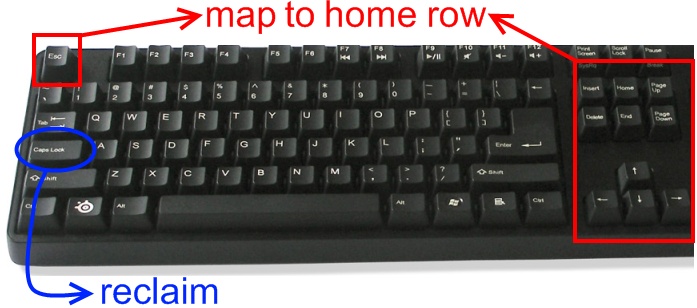
The idea is to change Caps Lock so that it can be combined with other accessible keys to produce all of the faraway keys shown above, plus frequent key combinations and anything else you might want. When I say “map to home row” I mean mapping to keys that can be reached while your hands remain on home row. Nearby letter keys are fine too. For example, Caps Lock+j could become the Up arrow and Caps Lock+e could become Alt+F4.
It is common to turn Caps Lock into Control, but we don’t actually want that because nearly all Control+X combinations are already taken by various programs, so we wouldn’t be able to do much remapping. Some Control+X combinations are very high yield (e.g., the copy/paste/cut combos) so we’ll remap those onto home row. I think the best substitute for Caps Lock is the “Apps Key”. Since no software uses it as a shortcut ingredient, we can hijack it without fear. Also, its normal role is to open a right-click context menu, so that’s a useful thing to have on home row as it helps you stay clear of the mouse.
So download SharpKeys, run it, and turn Caps Lock into the Application Key as shown below:
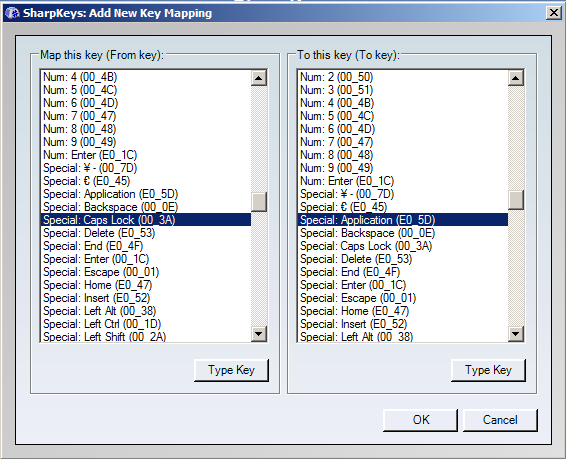
OK, then click “Write to registry”, log off and back on, and you’re in business. The second step is to download the outstanding AutoHotKey to run our remapping script. AutoHotKey is a must have for Windows power users, featured repeatedly on lifehacker. Since it is a full-on automation and scripting engine there are many ways to do things. However its native key remapping syntax (OldKey::RemappedKey) doesn’t work for us here since we want to map key combinations into single keys. But you don’t have to worry about that, you can just download my ready-made script for either the qwerty (normal) keyboard layout or the Dvorak (freak) layout. Put it anywhere in your file system, then create a shortcut to the script in the Programs > Startup folder so it runs when you log on to Windows. By inspecting the script you’ll be able to tweak it for your tastes. Here’s what it does out of the box:
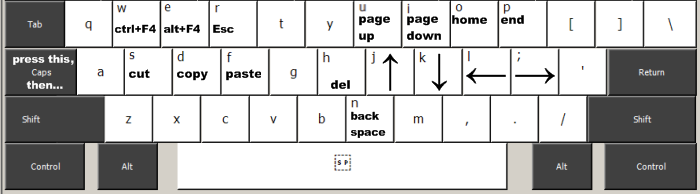
Thanks to AutoHotKey’s eliteness the layout works well in practice. The timing is not quirky at all and there are zero misfires. If you hold down Caps Lock, you can press the other keys repeatedly and they’ll be remapped. Let go of Caps Lock and they’re back to normal. The script also handles modifiers such as Alt and Shift being pressed along with the key combinations. It’s pretty transparent. If you want to actually toggle caps lock, then Windows Key + Caps Lock will do the trick.
It is a joy to have navigation keys on the home row. It makes browsing, programming and writing much smoother. You can fly through dialogs. Having Esc nearby is not bad either. All in all, I can’t imagine going back to a regular keyboard. Given AutoHotKey’s power you can write scripts to handle key combinations so there are many possibilities. I adapted to this thing pretty fast; the symmetries between page up/up arrow, home/left and so on helped a bit. Again, it’s trivial to pick your own bindings, take a look at other ideas for cursor movement and cook up your own scheme if you wish.
Some quick thoughts regarding text editors. When I first did this I was an Emacs user so having a convenient Control key was crucial, but I still think it’s better to turn Caps Lock into the Apps Key instead. Then you can pick and choose your macro bindings between Control and Caps Lock, and given AutoHotKey’s power you have a lot of leeway. I have since switched to Vim (apostasy!!) and never looked back. Vim users will recognize the beauty of having arrow keys on the home row, but will probably barf at the exact key choices I used since jklh is burned into their brains. Just edit the script. You’ll like navigating without switching modes, and Esc on the home row is great for when you do switch. In Visual Studio this works seamlessly without interfering with any of the native shortcuts.
I’ve tried this out on Windows XP, Server 2003, Vista, and Server 2008, both 32- and 64-bit flavors. No problems that I know of, but use it at your own risk. The script works over Putty so the keys are available on the command line and Vim for all of the Unix boxes I use. If you know of similar approaches in other OSes I’d love to hear it in the comments. Hope this is useful!
Update: Amjith pointed me to XKeymacs, a tool that implements the same idea but for emacs keybindings (you could do a similar thing via AutoHotKey, but this is convenient for sure). Also, you guys in the comments are all in favor of Vim-style HJKL bindings, so if anyone makes a script to do that, I’d be happy to host it.
Update 2: Simon Scarfe has posted Vim-like bindings for qwerty here. See the comments for details. Thanks!
Update 3: Paul has posted a Linux implementation of this in a comment below. Sweet.
Comments
33 Responses to “Home Row Computing”
Leave a Reply
Why not map the arrow keys to match Vi? It would make using gmail and greader easier since they use the same mapping as well.
Yeah, I agree totally with Casey. (I want vi key bindings everywhere…) Otherwise, thanks for the tip.
Absolutely, if you’re a Vim user HJKL is the only way to go.
The reason I didn’t start out that way is because I didn’t use Vim when I first set this up. Once I started on Vim I thought about changing, but I like the fact that the arrow keys match exactly my right hand fingers too. And since it’s transparent, I can use it on Vim as well, so it just sort of stayed.
If anybody makes a HJKL variant though I’d be happy to host or link to it.
hjkl bound like Vi is the first thing that I would change too. (But GREAT idea).
I use emacs keybindings for this and there is a wonderful tool out there to achieve this http://www.cam.hi-ho.ne.jp/oishi/indexen.html easy to configure.
@Joe: thanks
@Amjith: HAH, that’s cool! I knew there would be some other fanatics out there doing this as well
I’ll mention this in the post.
Hey thanks for this, it’s ace.
I’ve whipped together a Vim-compatible one here: https://dl.getdropbox.com/u/314700/homerow-qwerty.ahk (that should work, email me if it doesn’t, I’ve never gone public on dropbox before).
All I’ve done is map h,j,k,l onto left, up, down, right respectively, and switched page-up and down around to mirror the new bindings (home and end feel “right” where they are).
Again, this is awesome, keep up the good work!
Si
Oh one more thing, I moved del onto G so that it doesn’t interfere with the new H.
@Simon: cool, thanks! I’ve added a link in the post.
Caps lock key is super-convenient as a language/layout switch key. Of cause, only when you have to type bilingual texts.
You nerds! Go back to pen and paper!
Would anyone care to provide a file or a guide to implementing this cool scheme in Linux, perhaps using xmodmap or xkb?
@Paul: I’d love to have that on Linux as well. I don’t know of a way to get the setup working the way I have it on Windows though.
If you figure something out, I’d appreciate if you let me know.
I’ve thought about writing a kernel module to do this. This would have the advantage of working _everywhere_, even on a console tty. If I ever switch to a Linux desktop, I’d do this.
Okay, I got it working on my Linux laptop, if not supremely elegantly. Evidently there is some overlapping of tasks between xkb and xmodmap under Xorg, so just setting the settings in xmodmap wasn’t doing the trick.
First I made an ~/.Xmodmap file to turn my Caps Lock key into a modifier:
clear Lock
keycode 66 = ISO_Level3_Shift
Then I modified the first stanza of my /usr/share/X11/xkb/symbols/us file to add the keymappings I wanted:
key { [ h, H, Left ] };
key { [ j, J, Down ] };
key { [ k, K, Up ] };
key { [ l, L, Right ] };
I saved both files and activated the changes with
setxkbmap ; xmodmap ~/.Xmodmap
And it works great! Thanks for the idea — it’s a real time-saver.
I don’t think you’d need a kernel module to make it work on the console; I think the built-in loadkeys can handle that.
@Paul: thanks! I’m going to update the post to include your solution. This is awesome.
Inspired by this excellent idea I added some keybindings to a fork of xkeyboard-config. See
http://github.com/claes/xkeyboard-config/tree/master
With this fork installed, a similar layout as described here can be installed with the command
setxkbmap -layout “se+movement+level3(caps_switch)”
(replace as suitable). “movement” adds the movement keybindings, and level3(caps_switch) adds ISO_Level3_Shift to Caps Lock.
It is my intention to push this upstream when it proves stable. (I don’t know how to install it as a custom keymap only, unfortunately)
@Claes: that’s really cool. thanks for your work.
@Paul: Does it work to select text with Shift + CapsLock + hjkl? I tried your method and couldn’t get it working. Basic cursor key movement with CapsLock + hjkl is working fine, though.
I also tried xmodmap and got CapsLock + hjkl working but again failed to get selecting text to work.
Simon’s vi keymapping file seems to be gone. I’ve made one available. Same remappings as Simon’s.
http://dl.dropbox.com/u/2338610/hrc-vi.ahk
Thanx for the work here, good stuff.
Important note:
If you mistakenly leave a key down in script (as the querty script link above is), you can get some issues.
I first noticed a problem when my drag-drop didn’t work.
add AppsKey + “key” up::SendInput {“key” Up}
Mods:
Added lines,
; Force reload when running file re-opened
#SingleInstance force
ikjl = up, down, left and right
uo = home, end
p; = page up, page down
e = esc
r = run
w = close window
h and n swapped (h feels more like reversing)
This layout works much better for me, and I’m finding it quite natural.
It will be interesting to see how long it takes me to try to use this on a computer not setup with it. Bet it won’t be long!
After reading about the Optimizer Keyboard (http://geekhack.org/showwiki.php?title=Island:9140), which basically implements this idea on a hardware basis, I looked for a way to do it by software. And I found this page which is exactly what I needed. Many thanks!
I’m using IJKL for arrows and adjacent keys for delete etc., but focused on selecting / deleting whole words. It’s just much quicker to move around the text by word (both in the navigational sense and in the recomposing sense).
When AppsKey hold:
Tab = Shift (so I can combine highlighting with the cursor movement comfortably)
j/l = Ctrl left / right (move a word left / right)
i/k = Up / Down
u = Delete
n = Ctrl Delete (delete a word)
Backspace = Ctrl Backspace (backspace a word)
0 / p = Page Up / Down
9 / o = Home / End
I still need to get used to it but already see the potential benefits. Looking forward to a bit of programming tomorrow with this layout.
Too bad that mapping the AppsKey on Capslock means Enso launcher (http://humanized.com/enso/launcher/) has to be moved somewhere else…
A while ago I had to move reluctantly to OS X from Windows. I say reluctantly because I did not want to live without home row computing!
To cut a long story short, in the end I did manage to get a somewhat workable, but not entirely satisfactory setup. It seems it is only possible to set mappings for cocoa apps, not all applications, and even then sometimes (annoyingly) they can have short cuts (I will hold my peace on the state of OS X shortcuts) which map override the bindings provided.
The files I am providing are for Dvorak. They also contain what I think to be improvements over the suggested mappings.
caps + querty g -> undo
caps + querty t -> redo
I also swapped backspace and delete around.
Cocoa mappings
http://dl.dropbox.com/u/229443/home_row/DefaultKeyBinding.dict
Save this file to ~/Library/KeyBindings/DefaultKeyBinding.dict
There are other significant applications which are not cocoa, but some have in application support for this kind of remapping. For me the big ones were Eclipse, Open Office and Firefox.
For Eclipse
http://dl.dropbox.com/u/229443/home_row/keyprefs.epf
To import keyboard preferences do File->Import, General/Preferences
Open Office seemingly supports such remapping, but I did not manage to get anything working, so I gave up on that one. Firefox does not, by now my brain is used to this and I just automatically revert to the 3rd class short cuts and mousage (pronounced mouse-ij).
Usually disclaimers apply. I am far from an expert on OS X workings, and this was just a result of a day or so of me messing around trying to get various things working. It may well be possible to do better.
My thanks go to Mr. Duarte for enlightening me.
IMHO, the Miniguru is absolutely perfect. See for yourself:
http://www.guru-board.com/english/layout_en
Unfortunately, its not available and I was forced to by a dinno called Unicomp Endurapro, which is a professional mechanical keyboard with a trackpoint.
Once now I have the hardware for “Home Row Computing”, next step is emulate the way the wonderful Miniguru defines its Layer2 (as shown in the link above). Features in a nutshell:
* Caps becomes Control
* Both controls become additional function keys
* Swap both Alts with both Supers (or ‘Win’ keys)
* Do not overwrite other layouts you’ve loaded previously
In the example below, I load us-intl (with dead keys) and I choose miniguru:layer2 as an optional on top of it:
$ setxkbmap us(intl) -option -option miniguru:layer2
In order to make this work, copy the text below into a file named /usr/share/X11/xkb/symbols/miniguru
//
// Miniguru Layer2 layout
// see: http://www.guru-board.com/english/layout_en
//
// author: Richard Gomes
//
partial alphanumeric_keys modifier_keys
xkb_symbols “layer2″ {
name[Group1] = “Miniguru Layer2″;
key.type[Group1]=”ONE_LEVEL”;
// Caps_Lock becomes Control_L
// Control_L and Control_R become ISO_Level5_Shift
replace key { [ Control_L ] };
replace key { [ ISO_Level5_Shift ] };
modifier_map Mod3 { , };
// Swap Alts with Supers
replace key { [ Super_L, Hyper_L ] };
replace key { [ Alt_L, Meta_L ] };
replace key { [ Super_R, Hyper_R ] };
replace key { [ ISO_Level3_Shift ] };
modifier_map Mod1 { , };
modifier_map Mod4 { , };
modifier_map Mod5 { };
key.type[Group1]=”EIGHT_LEVEL_ALPHABETIC” ;
key { [ NoSymbol, NoSymbol, NoSymbol, NoSymbol, Escape ] }; // tilde
key { [ NoSymbol, NoSymbol, NoSymbol, NoSymbol, F1 ] }; // 1
key { [ NoSymbol, NoSymbol, NoSymbol, NoSymbol, F2 ] }; // 2
key { [ NoSymbol, NoSymbol, NoSymbol, NoSymbol, F3 ] }; // 3
key { [ NoSymbol, NoSymbol, NoSymbol, NoSymbol, F4 ] }; // 4
key { [ NoSymbol, NoSymbol, NoSymbol, NoSymbol, F5 ] }; // 5
key { [ NoSymbol, NoSymbol, NoSymbol, NoSymbol, F6 ] }; // 6
key { [ NoSymbol, NoSymbol, NoSymbol, NoSymbol, F7 ] }; // 7
key { [ NoSymbol, NoSymbol, NoSymbol, NoSymbol, F8 ] }; // 8
key { [ NoSymbol, NoSymbol, NoSymbol, NoSymbol, F9 ] }; // 9
key { [ NoSymbol, NoSymbol, NoSymbol, NoSymbol, F10 ] }; // 0
key { [ NoSymbol, NoSymbol, NoSymbol, NoSymbol, F11 ] }; // minus
key { [ NoSymbol, NoSymbol, NoSymbol, NoSymbol, F12 ] }; // equal
key { [ NoSymbol, NoSymbol, NoSymbol, NoSymbol, Delete ] }; // backspace
key { [ NoSymbol, NoSymbol, NoSymbol, NoSymbol, BackSpace ] }; // space
key { [ NoSymbol, NoSymbol, NoSymbol, NoSymbol, Home ] }; // u
key { [ NoSymbol, NoSymbol, NoSymbol, NoSymbol, Up ] }; // i
key { [ NoSymbol, NoSymbol, NoSymbol, NoSymbol, End ] }; // o
key { [ NoSymbol, NoSymbol, NoSymbol, NoSymbol, Previous ] }; // p
key { [ NoSymbol, NoSymbol, NoSymbol, NoSymbol, Left ] }; // j
key { [ NoSymbol, NoSymbol, NoSymbol, NoSymbol, Down ] }; // k
key { [ NoSymbol, NoSymbol, NoSymbol, NoSymbol, Right ] }; // l
key { [ NoSymbol, NoSymbol, NoSymbol, NoSymbol, Next ] }; // semicolon
key { [ NoSymbol, NoSymbol, NoSymbol, NoSymbol, Delete ] }; // m
key { [ NoSymbol, NoSymbol, NoSymbol, NoSymbol, Insert ] }; // comma
key { [ NoSymbol, NoSymbol, NoSymbol, NoSymbol, Print ] }; // w
key { [ NoSymbol, NoSymbol, NoSymbol, NoSymbol, Scroll_Lock ] }; // e
key { [ NoSymbol, NoSymbol, NoSymbol, NoSymbol, Pause ] }; // r
};
Some typos:
1. I was forced to buy, and not forced to by.
2. The correct command must contain quotes, like this:
$ setxkbmap “us(intl)” -option -option miniguru:layer2
Thanks
Richard Gomes
Oh… come on… the blog software swallowed parts of the text! too bad
Please download the file from here:
http://www.jquantlib.org/ftp/rgomes/downloads/miniguru
Thanks again!
Richard Gomes
Putting everything together:
1. The Miniguru is a compact keyboard with trackpoint, excellent for those interested in the ‘home row’ concept. Have a look at its Layer 2, which provides IJKL and other niceties.
http://www.guru-board.com/english/layout_en
2. I’m providing a non-intrusive keyboard emulation for Linux. By non-intrusive I mean that the “miniguru(layer2)” option does not interfere with other keyboard configurations you may have selected. So you can have the Miniguru Layer2 on top of us-intl, for example. Well… mostly. Some configurations, like “de(neo)” (among some others) may be affected.
How it works:
1. Download the file I’m providing at
http://www.jquantlib.org/ftp/rgomes/downloads/miniguru
and put it into your folder
/usr/share/X11/xkb/symbols
2. Enter the command below, which selects layout “us(intl)” and puts option “miniguru(layer2)” on top of it:
$ setxkbmap “us(intl)” -option -option miniguru:layer2
That’s it. I hope it helps.
Richard Gomes
Thanks a lot Gustavo and all for such a time-saving compilation.
But instead of compulsion of keeping pressed caps lock ( and then press another key), can somebody please suggest a way to do this with caps toggle mode. I mean..
now , caps + h => gives you left arrow
but , caps(pressed once) and h => should give me left arrow and when i toggle caps back , h should give me normal ‘h’
This should save us a lot of time. Please somebody hack it this way and post here:)
Thanks.
[...] an annoyance. But there are ways to make it more useful. I recently found a very nice script by Gustavo Duarte which maps Caps Lock as a modifier key that lets you navigate in text Vim-style using H, J, K and [...]
Is it just me? When I implemented this on Windows 7, I got the desired effect (and very nice too!) but with just one failing – caps lock was not mapped onto Application key, the Application key remained unmapped ie continued to do its usual dreary work, and so Caps lock was unavailable. Adding a second line, the ‘reverse mapping’ in Sharpkeys, the exact opposite of the one given, has precisely the desired effect as described in the blog, with application key now mapped as caps lock. Hurrah! But, uh, surely this must have been spotted before? Is not the last line in AHK script intended to achieve this effect, but seems not to do so? Or am I just being dumb here, misunderstood something? Any road up, thanks for a great post even after all these years, this is just a minor point.
@Giles: Were you able to use SharpKeys to do the key mapping? Or are you using only the AHK script?
I think I followed your guide exactly, using sharpkeys frirst, saving to registry, it works as expected, just I need to add a second line which as I said is precisely the reverse mapping ie from 00_3A to E0_5D. These together, when written to registry, work as expected. Then I use the AHK script you provide, compile to an exe, placed in startup, and all works fine. But without the second mapping, in sharpkeys, no caps lock. With the second mapping, just fine.
I’ve just had another look at your AHK script and the last two lines are:
; Make Windows Key + Apps Key work like Caps Lock
#AppsKey::Capslock
I’m puzzled by the hash on the last line, no other line has hash…? I suppose I could RTFM, but as is this last line appears not to be doing it’s job for me, I wondered if this is unintended?
But anyway, doing via sharpkeys works just fine so I really don’t have a problem – thanks again for sharing all this because it is pretty cool.
great post as always!
this may be a bit off-topic, but I cannot acces the site due to limitations on my computer imposed by my anti-virus program:
ESET NOD32 Antivirus – Alert
http://www.randyrants.com/sharpkeys/
Access to the web page was blocked by ESET NOD32 Antivirus.
The web page is on the list of websites with potentially dangerous content.
is there any real potential danger in SharpKeys, or is this just a false-positive? Or maybe the site was attacked? (but I got this a month ago, too) Or (worst case) do they classify not-for-noob programs as viruses?
@naxa: it’s always good to err on the side of caution, but in this case I think it’s a false positive. It could be that there is malware that uses Sharp Keys for ill intent, maybe remapping user’s keys to do key snooping or other bad deeds.